Apple Account Binding Key Points
- Always use your Seminoles.com account transfer on Seminoles.com/Tickets or the FSU Gameday App
- Sharing logins, screenshots, emails, or texts with ticket links will result in disabled passes and will NOT grant entry on game day
- Always use SeatGeek to resell your tickets if you are unable to attend an event; Apple Account Binding does not impact SeatGeek tickets at this time
What Is Apple Account Binding?
Account binding adds security to your mobile tickets by binding them to your Apple ID, much like Apple Pay. This prevents unauthorized sharing while keeping the same easy entry experience you're used to.
First Time Setup
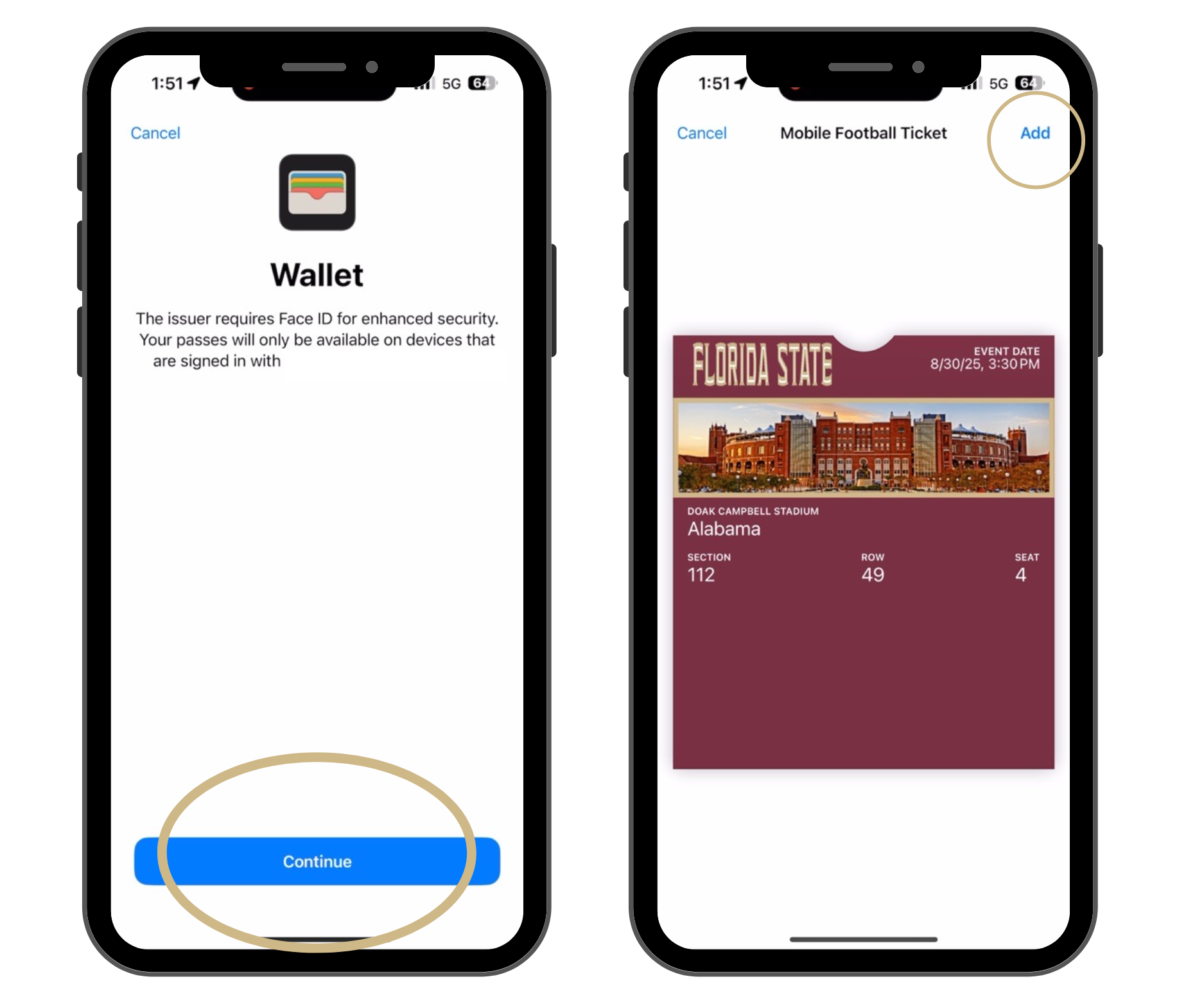
When you add your first mobile single-event ticket to your Apple Wallet after enabling account binding, Apple will ask you to verify your Apple ID (using Face ID, Touch ID, or your password). This creates a secure connection between your FSU tickets and your iCloud account.
Choose your primary Apple device carefully. The first person to add a single event ticket from your online account to Apple Wallet permanently binds that account to their Apple ID. All future tickets from that account must either go to the same Apple Wallet or be officially transferred.
For parties of two or more, we recommend designating one tech-savvy member as the "primary" Account iPhone. The Account Primary iPhone adds the first ticket to their Apple Wallet and transfers tickets to anyone who enters the event separately via their Seminoles.com account or FSU Gameday App. Each member who wants a ticket on their device MUST have their own Seminoles.com account to accept transferred tickets from the Account Primary.
Sharing Tickets
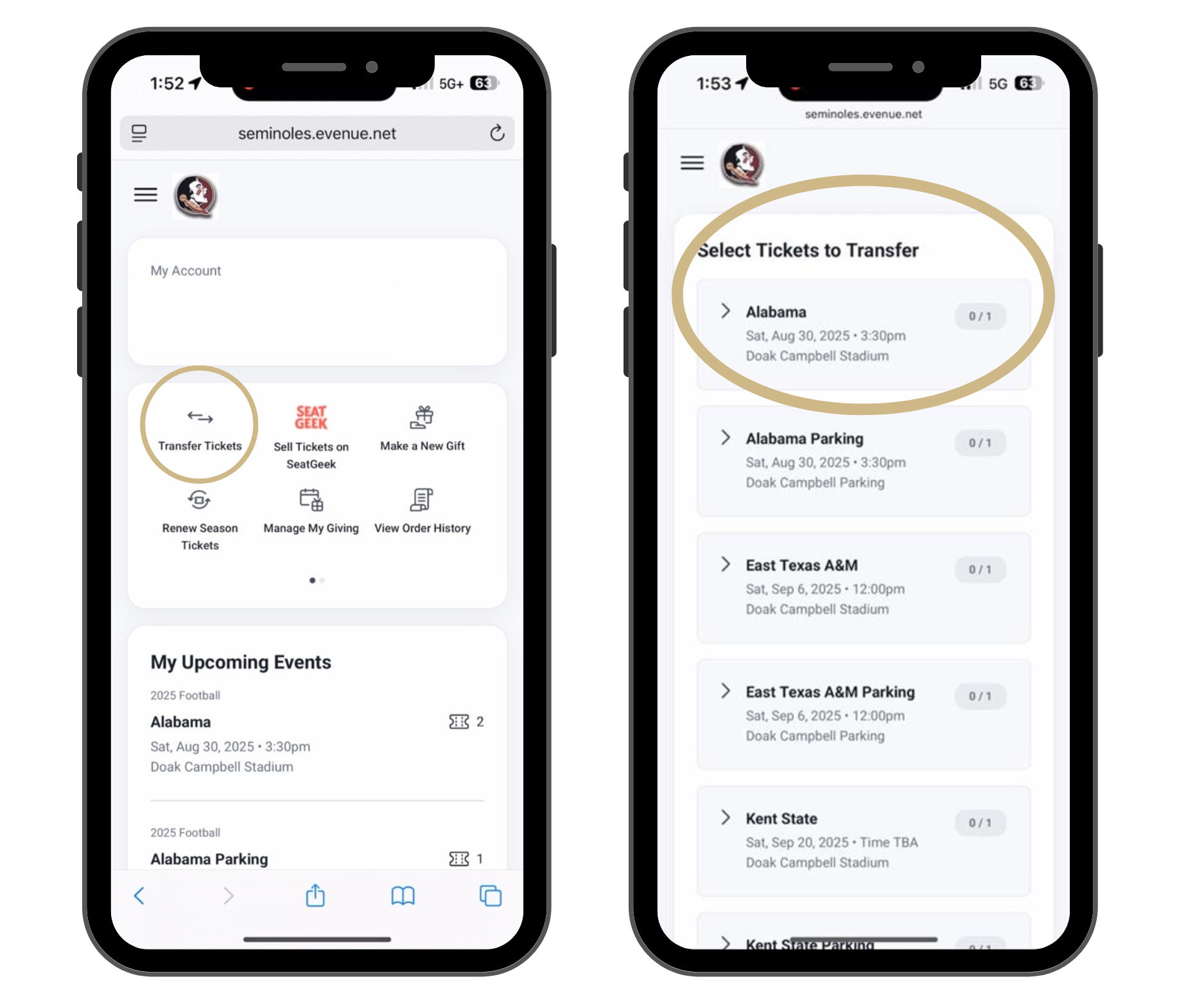
Always use the My Account transfer feature in your Seminoles.com account or the FSU Gameday App to share tickets with friends or family. Sharing logins, forwarding "add to wallet" emails, or using screenshots will NOT work for entry.
Everyone needing a ticket on their Apple device must set up a Seminoles.com ticketing account. If they already have one created from a previously accepted transferred ticket, they can simply add it to their own Apple Wallet.
Visual Indicators
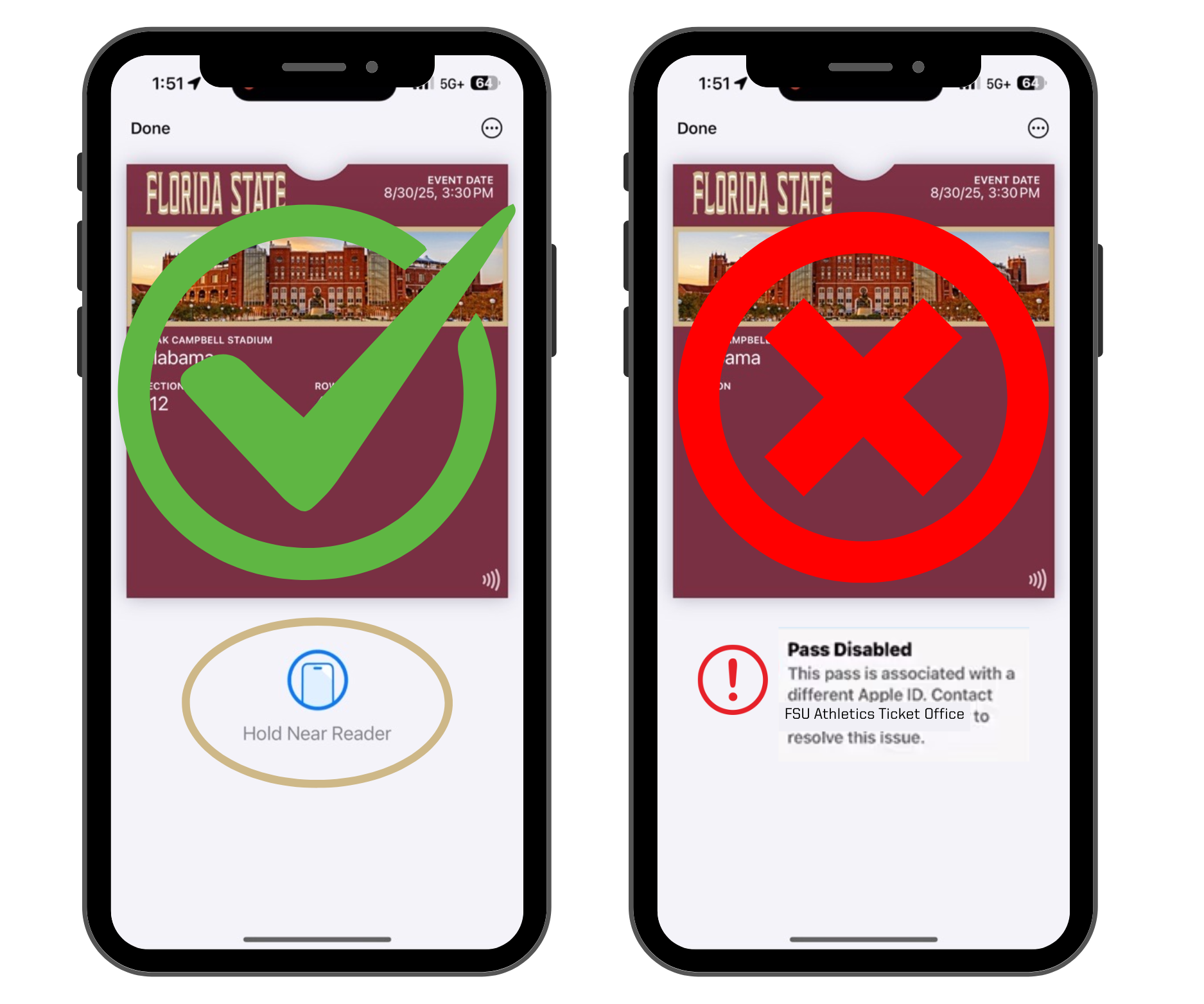
Once you have received your tickets, downloaded them to your Apple Wallet, and bound them correctly to your Apple Account, look for the "hold near reader" icon on your pass in your Apple Wallet. This signifies that your tickets are correctly linked and ready to scan.
If you do not see this icon:
- Check that you are signed into the same Apple Account used when first adding the tickets
- Try removing and re-adding the ticket from your Apple Wallet
- Ensure you're connected to wi-fi or cellular data
- If problems persist, contact the FSU Athletics Ticket Office at 850-644-1830
Ongoing Experience
Once set up, future FSU tickets are automatically bound to your Apple Account. You will not need to authenticate again unless you're using a different device or there's a security concern.
Troubleshooting Tips
Common Issue #1: Unable to Add to Wallet
If you're getting a message that you're unable to add the ticket to your wallet, make sure you're first connected to the internet with a cellular network or stable Wi-Fi. If it's still presenting an issue, consider:
Updating your iOS
Restarting your phone
Signing out and back into your Apple ID
Ensure Face ID and passcode are set up
Ensure you're signed into iCloud
Try on a different device
Common Issue #2: Safari Not Supported
If you're receiving a "Safari Not Supported" error message, try opening the link differently by copying and pasting it directly into Safari. If that does not work, consider sending it to a desktop first or checking the network restrictions.
Common Issue #3: Unsupported Browser
If you're receiving an "Unsupported Browser" message, make sure you're opening the link on Safari instead of another browser, like Chrome. This should resolve the problem!
Common Issue #4: Apple Pay URL
When you downloaded your ticket, it may have been saved as a card to Apple Pay as opposed to a pass or ticket. To fix this, go back to your account or ticket download email and re-add it to your wallet. You may also need to confirm that your Apple wallet setup is complete.
FAQs
"Do I Need to Do Anything Different?"
For your first ticket download after July 17th, you'll need to verify your Apple Account once. After that, everything will work automatically.
"What If I'm Having Trouble?"
Make sure you're signed into the same Apple Account you used when first adding tickets. If problems continue, please contact the FSU Athletics Ticket Office at 850-644-1830.
"Can I Still Share Tickets?"
Of course! You just need to use the official transfer feature on your Seminoles.com account. Do NOT forward emails with ticket links or share passwords.
"I don't have an iPhone - does Apple Account Binding affect me?"
At this time, it does not. These changes only impact Apple products for now.
GO NOLES!